Users, Roles & Permissions
Create user accounts, define roles with granular permissions, and manage the organizational hierarchy.
Roles Configuration
Navigation: Admin Console → Framework → Roles
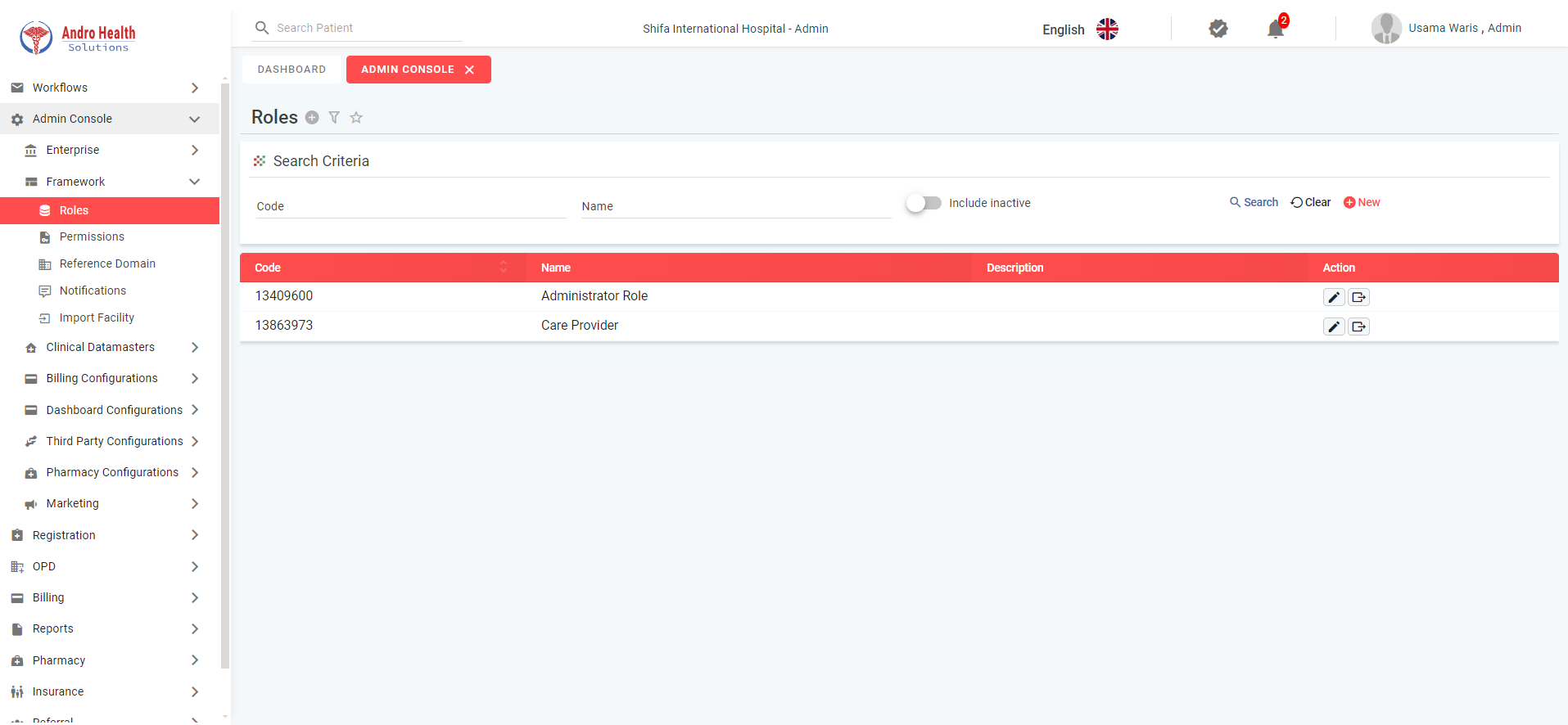
Creating a Role
- Click "New"
- Enter Code (auto-generate or manual), Name, and Description
- Set Active From/To dates
- Select Default Page — the landing page when a user with this role logs in
- Optionally copy from an existing role or import JSON
- Select Modules and EMR Systems this role can access
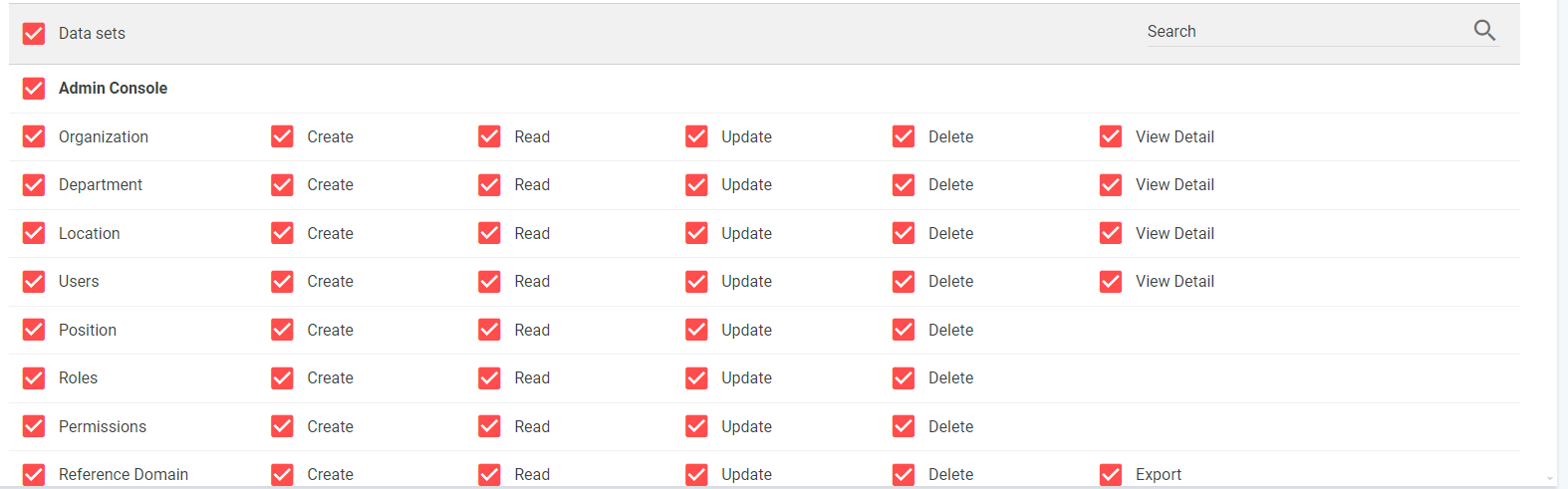
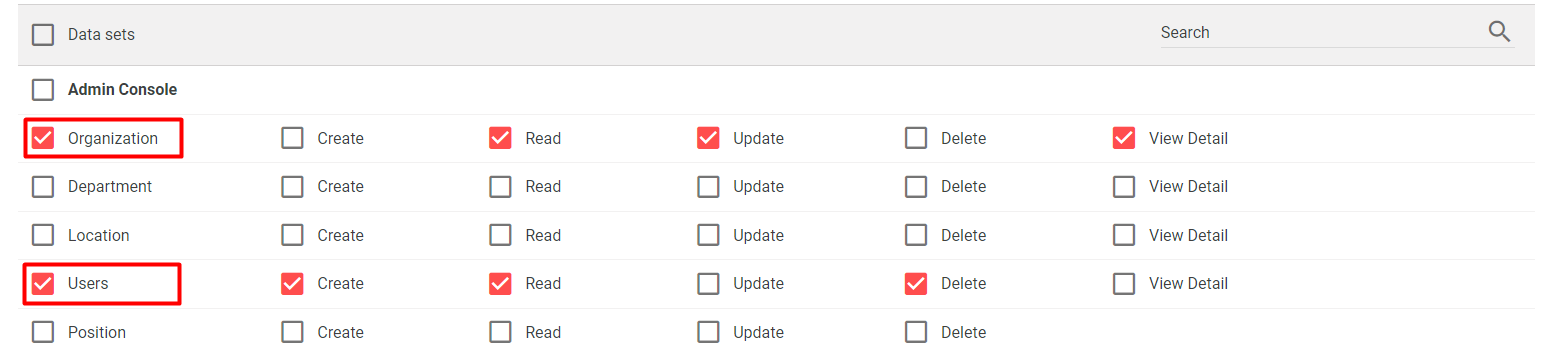
- In the Data Sets section, assign specific permissions:
- Select a module from the list
- Select components within that module
- Check individual permissions (Create, Read, Update, Delete, View Detail, Export)
- Or click "Assign All Roles" for full access
- Click "Save"
Permissions
Navigation: Admin Console → Framework → Permissions
Permissions has two tabs:
- Secure Item tab — System-generated items (you cannot add new ones). You can only edit Active From/To dates and toggle status.
- Permissions tab — Similar to Secure Items, only description and dates are editable.
Creating Users
Navigation: Admin Console → Enterprise → Users
The screen shows the current user quota. Click "New" to create a user.
User Form Sections
| Section | Key Fields |
|---|---|
| Basic Details | Profile photo (5MB max), code, local name (Arabic), standard name (English), gender, DOB, nationality, National ID |
| User Profile | User Type (Care Provider, Nurse, Laboratory, Non-Clinical, Assistant), qualification, license number, education, experience, certifications |
| Address Details | Full address with postal code |
| Contact Details | Phone, mobile (mandatory), email |
| Tax Details | Tax registration toggle, Tax ID, company name |
| Organization | Select organization (mandatory), position |
| Department | "All Departments" toggle or select specific departments. Default department (mandatory) |
| Wards | "All Wards" toggle or select specific wards (optional) |
| Roles | Search and assign roles. Default role (mandatory) |
After saving, the system sends an email with the username and password to the user's email address.
User Types
| Type | Description |
|---|---|
| Care Provider | Doctors and primary healthcare professionals |
| Nurse | Nursing staff (access to Nursing Work List) |
| Laboratory | Lab technicians |
| Non-Clinical | Administrative and support staff |
| Assistant | Care provider assistants/interns |
Positions & Organogram
Navigation: Admin Console → Enterprise → Position
Two tabs are available:
- Position List — Create and manage positions with reporting hierarchy
- Organogram — Visual tree view of the organizational hierarchy. Click "Vacant Positions" to see unfilled roles.
Common questions
How do I create a user account?
In Admin Console → Users, add the user and assign a role that defines their permissions.
Are permissions set per user or per role?
Permissions are defined on roles; each user inherits them from their assigned role.
Can I give one user extra permissions?
Adjust their role, or use permission overrides where supported.
Was this article helpful?